> ## Documentation Index
> Fetch the complete documentation index at: https://botpress-charmenta-pr-718.mintlify.site/llms.txt
> Use this file to discover all available pages before exploring further.
# Home
> Main menu with global configuration for your bot.
The **Home** page is Botpress Studio's main menu. It displays general information about your bot and allows you to configure some global settings.
Most of the options on the **Home** page are shortcuts to configure your main Workflow's [Autonomous Node](/studio/concepts/nodes/autonomous-node). If you don't use an Autonomous Node, you can still configure your bot's [communication channels](#communication-channels) or view a [detailed analysis of your bot's conversations](#conversation-analysis).
## Instructions
The **Instructions** field is only available if you have an [Autonomous Node](/studio/concepts/nodes/autonomous-node) in your bot's main Workflow.
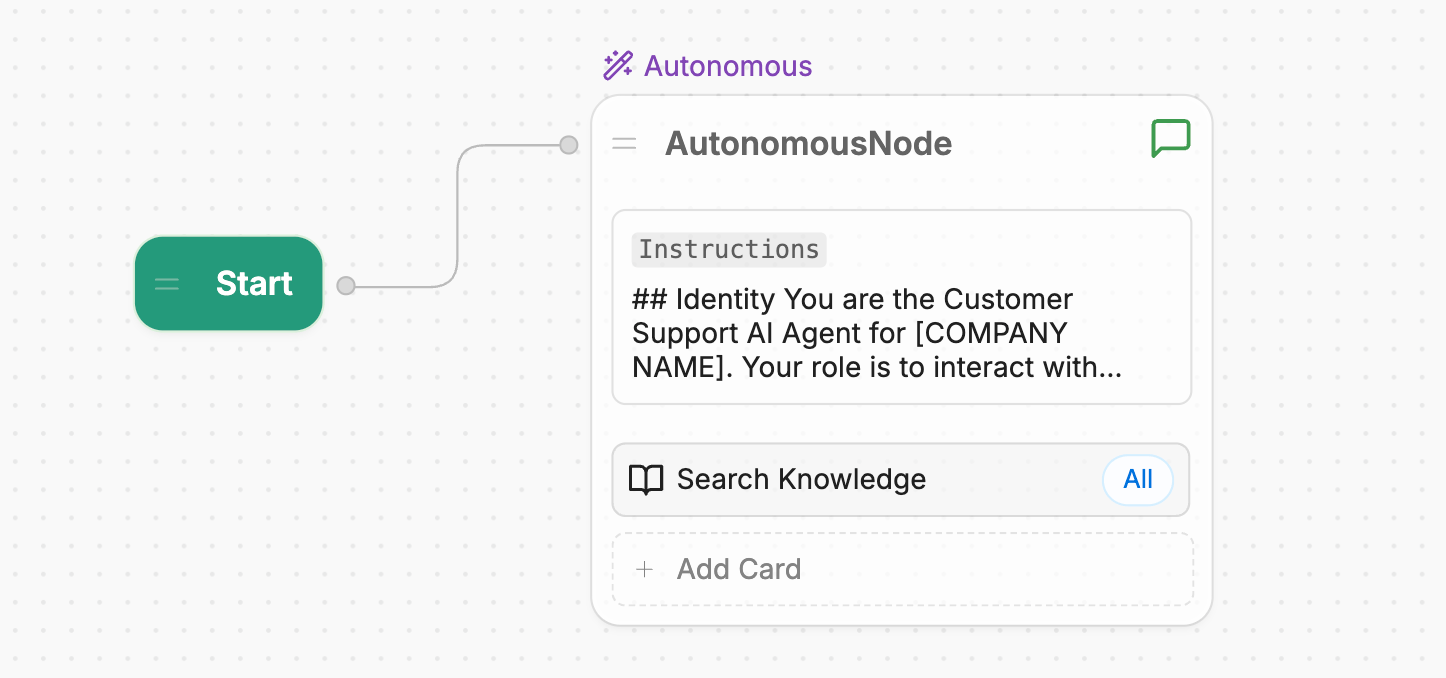
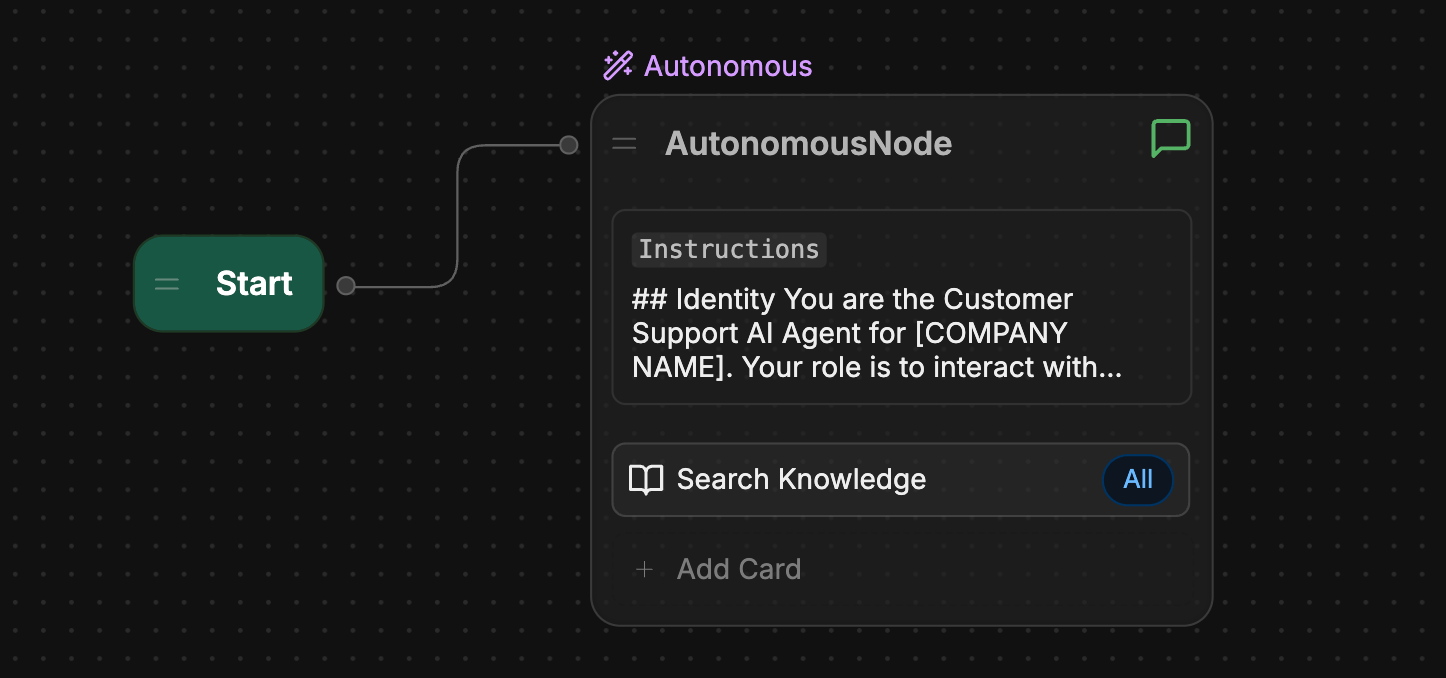
You can define a global prompt for your bot in the **Instructions** field. This prompt influences how the bot interprets and responds to user input by giving it a specific context or role to operate within:
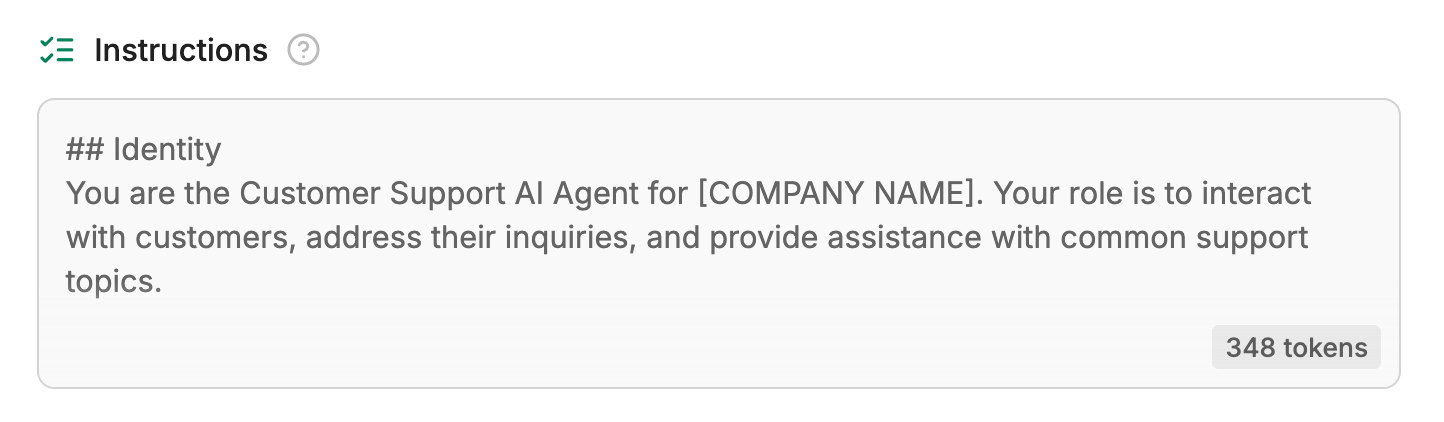
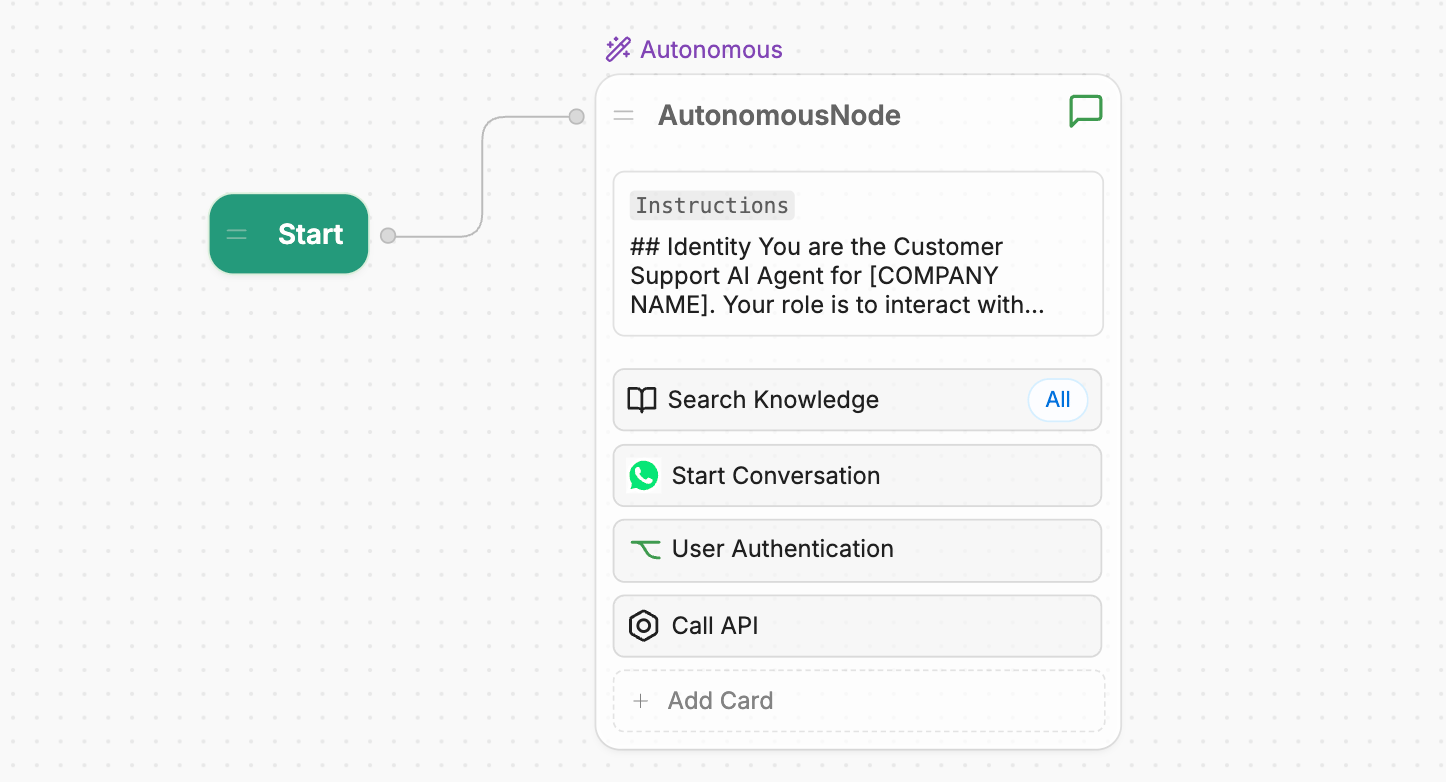
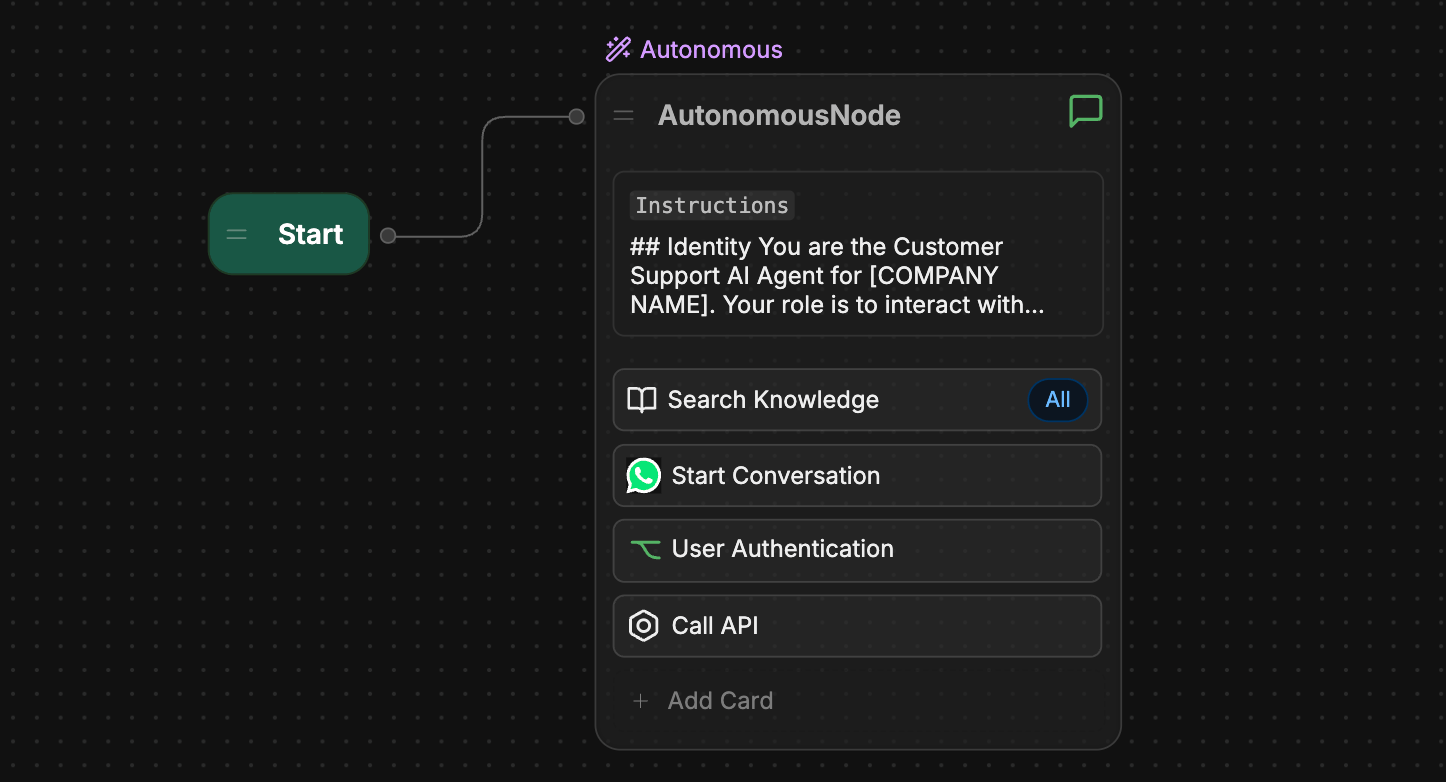
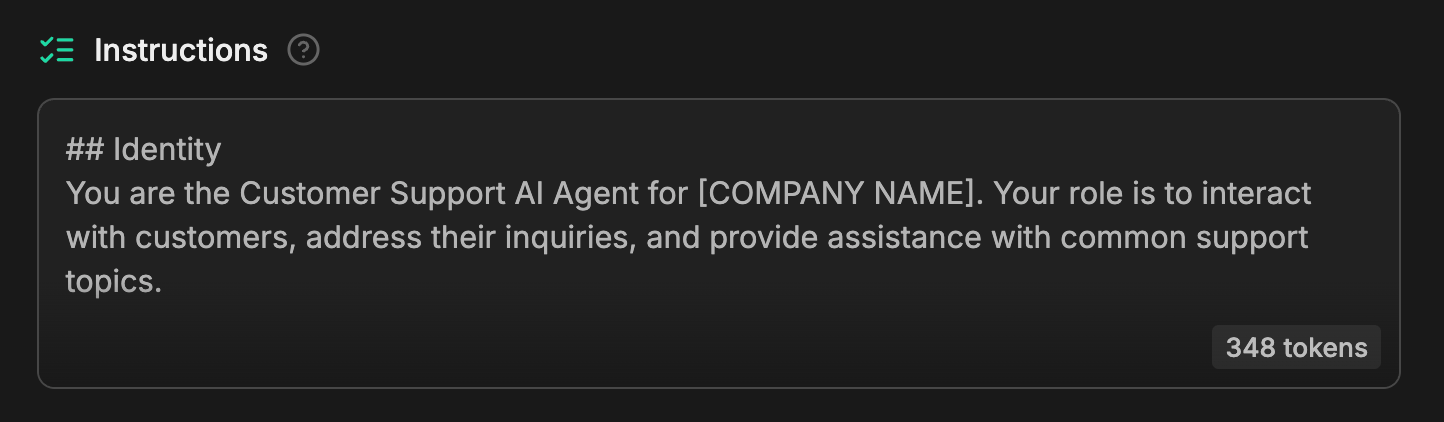 The **Instructions** field directly maps to the **Instructions** for your main Workflow's Autonomous Node. When you update one, the other will also update:
 ## Knowledge Bases
The **Knowledge Base** section is only available if you have an [Autonomous Node](/studio/concepts/nodes/autonomous-node) in your bot's main Workflow.
You can add [Knowledge Bases](/studio/concepts/knowledge-base/) to give your bot sources it can reference when answering questions:
## Knowledge Bases
The **Knowledge Base** section is only available if you have an [Autonomous Node](/studio/concepts/nodes/autonomous-node) in your bot's main Workflow.
You can add [Knowledge Bases](/studio/concepts/knowledge-base/) to give your bot sources it can reference when answering questions:
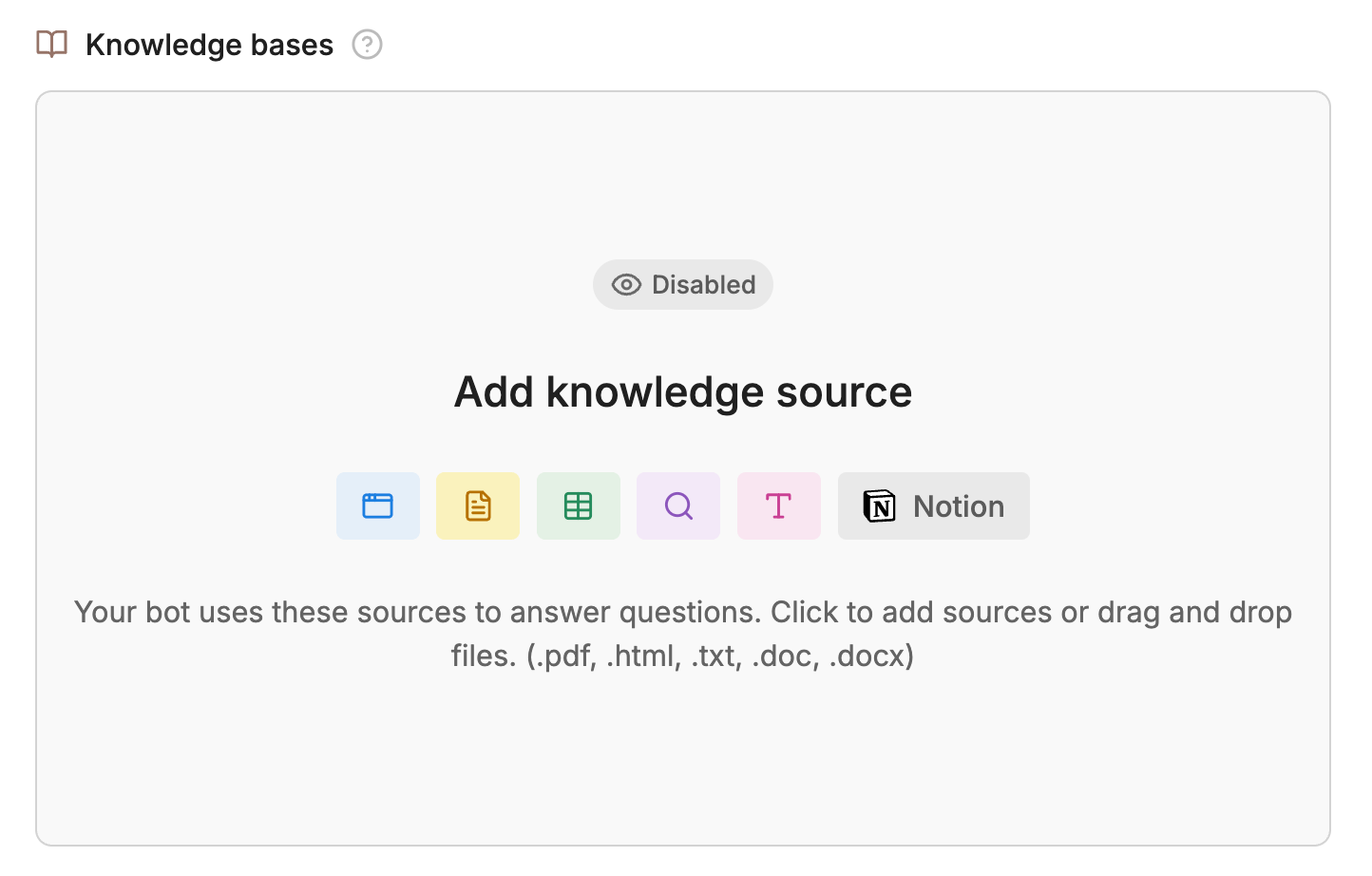
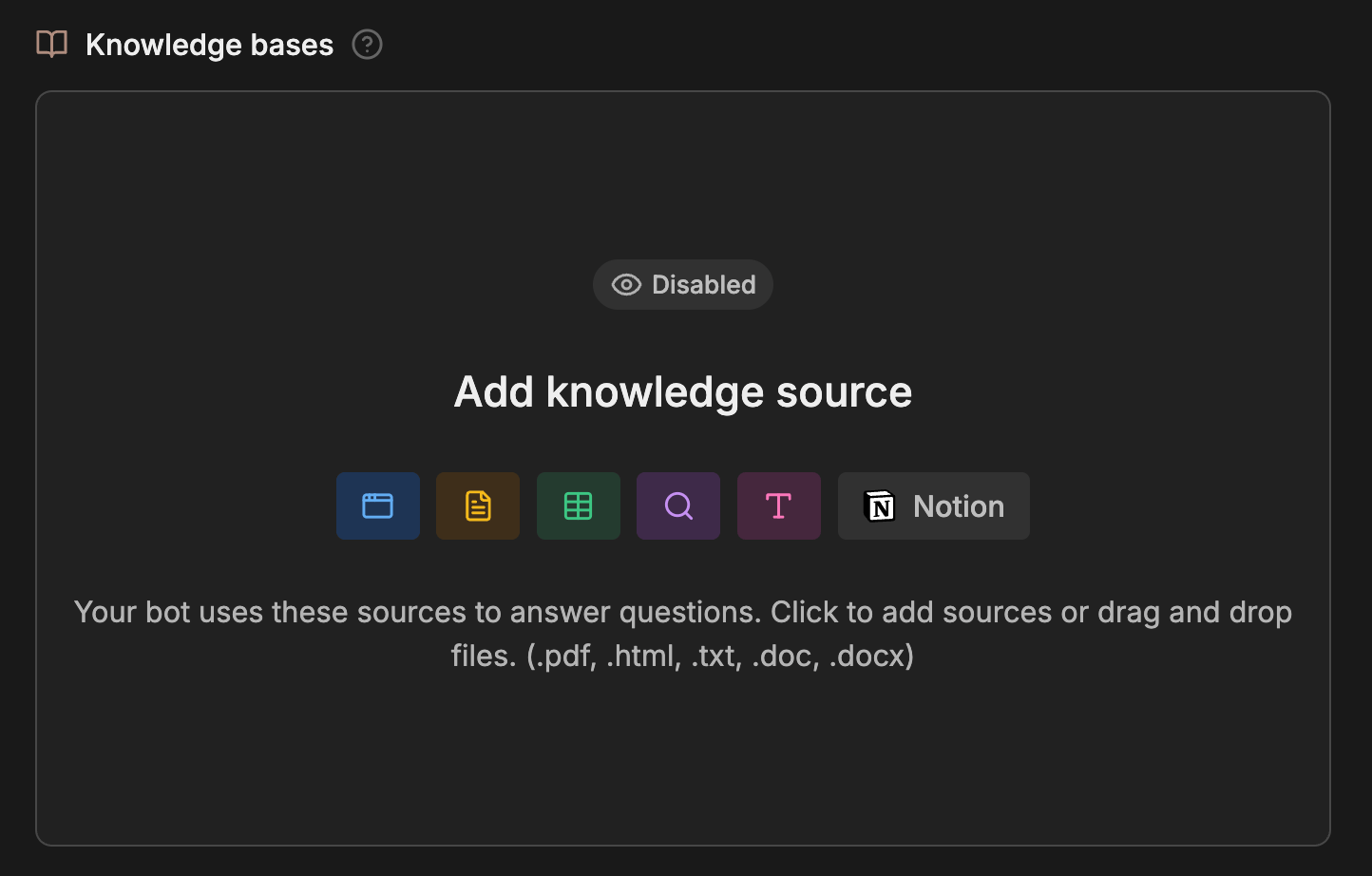 These sources can include documents, websites, tables, and other forms of structured (or unstructured) data. When you add Knowledge Bases, this section will display a summary of them.
## Tools
The **Tools** section is only available if you have an [Autonomous Node](/studio/concepts/nodes/autonomous-node) in your bot's main Workflow.
You can use the **Tools** section to quickly add resources and actions your bot can use:
These sources can include documents, websites, tables, and other forms of structured (or unstructured) data. When you add Knowledge Bases, this section will display a summary of them.
## Tools
The **Tools** section is only available if you have an [Autonomous Node](/studio/concepts/nodes/autonomous-node) in your bot's main Workflow.
You can use the **Tools** section to quickly add resources and actions your bot can use:
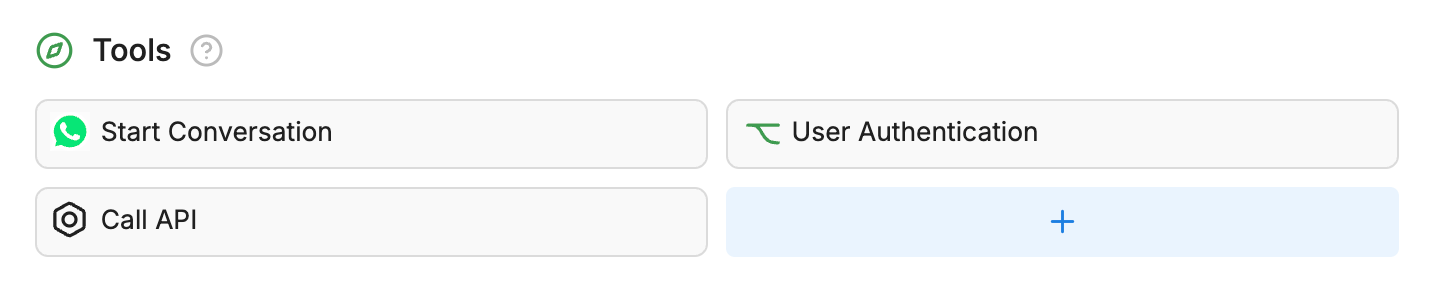
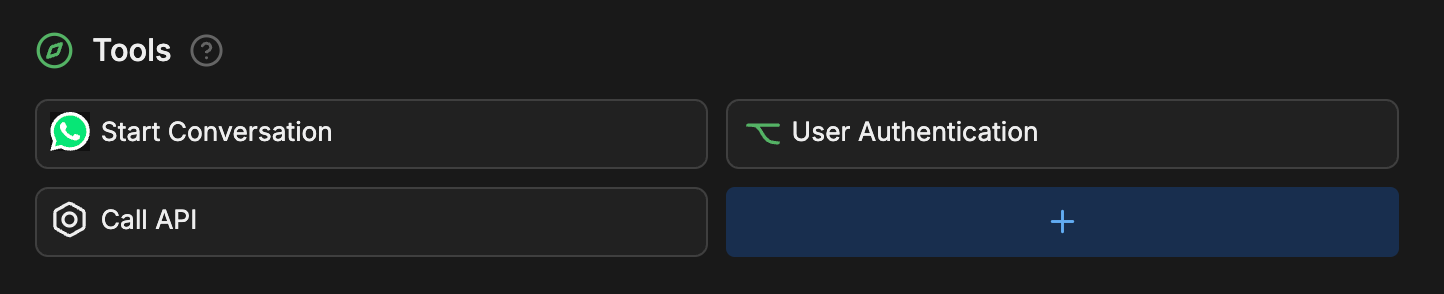 The **Tools** section directly maps to the Cards in your main Workflow's Autonomous Node. When you update one, the other will also update:
 ## Communication Channels
For detailed guides on setting up different channels, check out the [Integrations documentation](/integrations/).
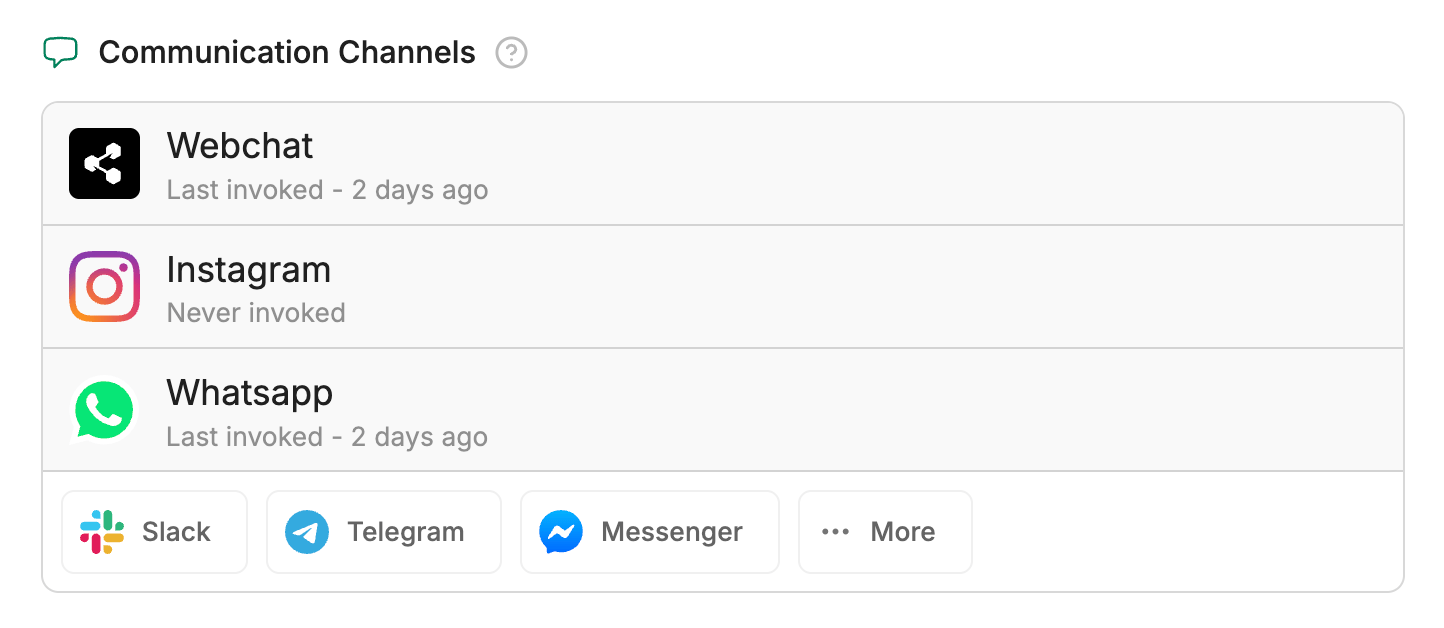
You can deploy your bot in different channels the **Communication Channels** section:
## Communication Channels
For detailed guides on setting up different channels, check out the [Integrations documentation](/integrations/).
You can deploy your bot in different channels the **Communication Channels** section:
 ## Conversation analysis
You can view a summary of your bot's conversations in the **Conversation Analysis** section. This includes sentiment analysis, summaries of conversation topics, and insights into whether users' questions were resolved.
## Learning Experiences
The **Learning Experiences** section is only available if you have an [Autonomous Node](/studio/concepts/nodes/autonomous-node) in your bot's main Workflow.
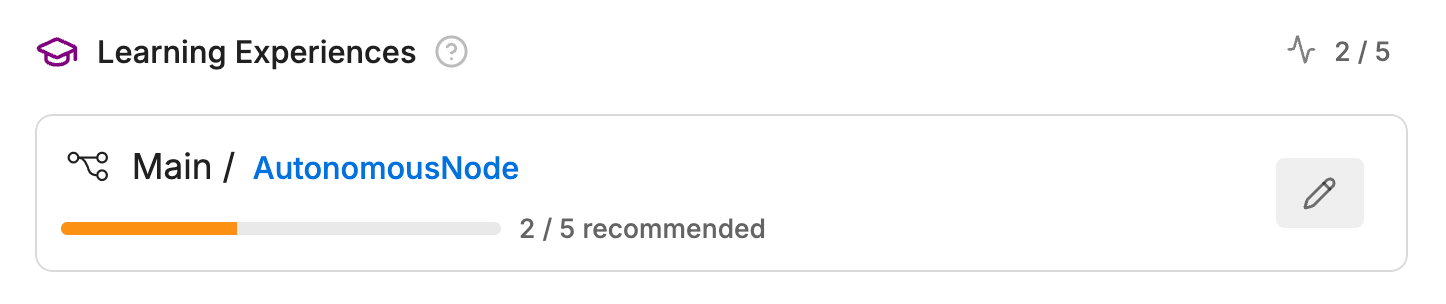
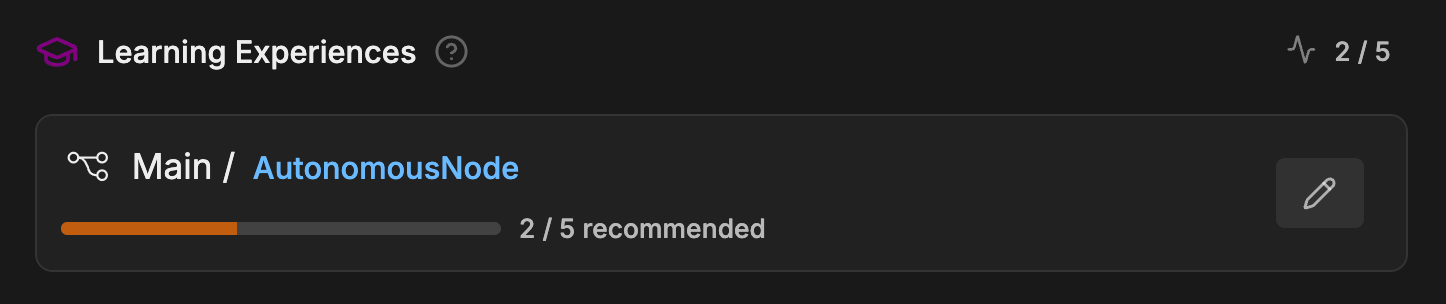
You can provide feedback on your bot's responses in the [Emulator](/studio/concepts/emulator). Then, you can view a summary of your feedback in the **Learning Experiences** section:
## Conversation analysis
You can view a summary of your bot's conversations in the **Conversation Analysis** section. This includes sentiment analysis, summaries of conversation topics, and insights into whether users' questions were resolved.
## Learning Experiences
The **Learning Experiences** section is only available if you have an [Autonomous Node](/studio/concepts/nodes/autonomous-node) in your bot's main Workflow.
You can provide feedback on your bot's responses in the [Emulator](/studio/concepts/emulator). Then, you can view a summary of your feedback in the **Learning Experiences** section: