> ## Documentation Index
> Fetch the complete documentation index at: https://botpress-charmenta-pr-718.mintlify.site/llms.txt
> Use this file to discover all available pages before exploring further.
# Preview
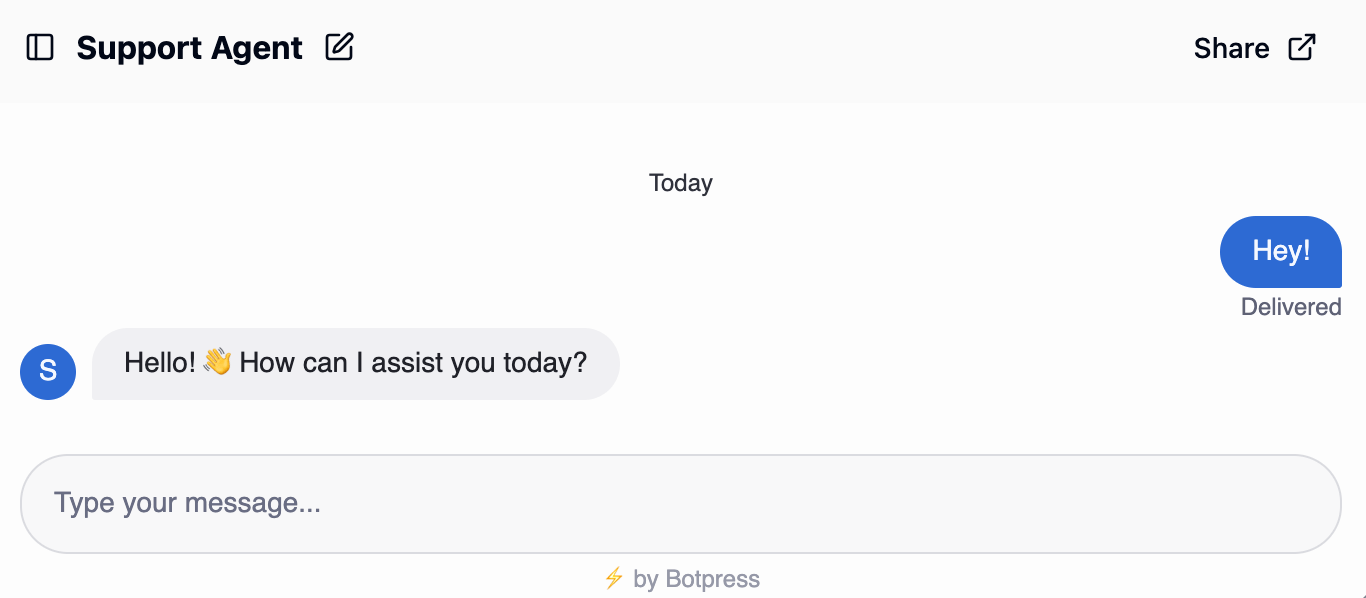
You can chat with a preview of your published agent at any time:
Go to the ** Overview** section in your agent's menu.
Select ** Preview** to open the preview.
## Test your agent
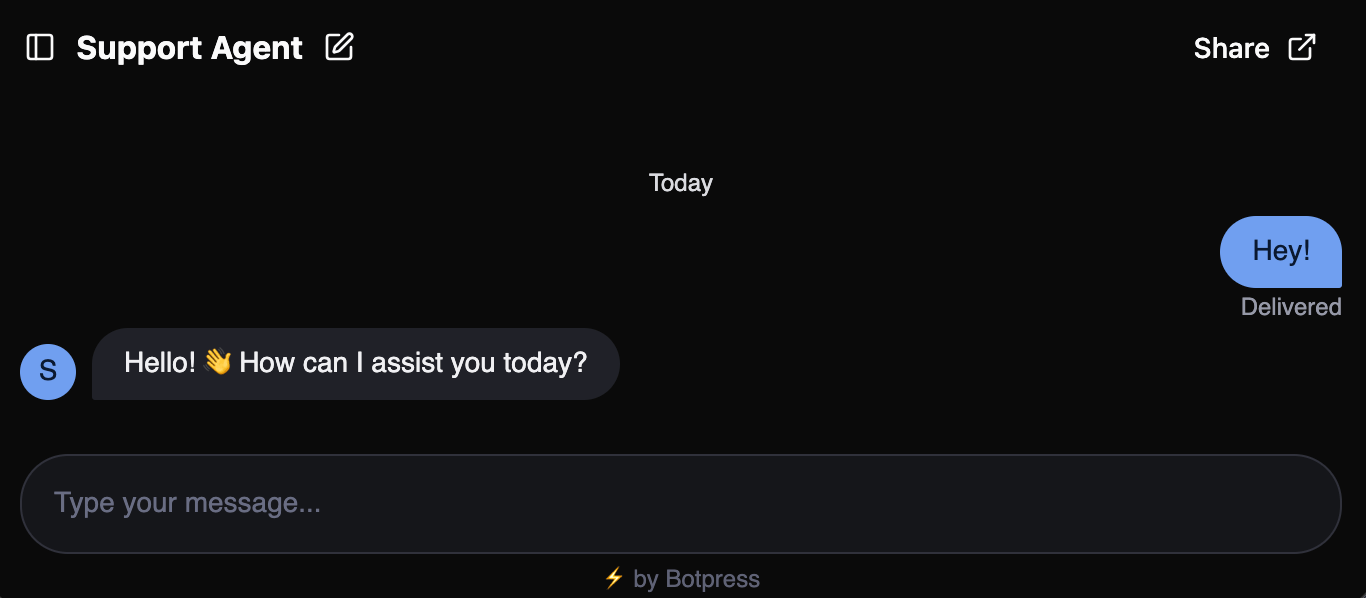
Start a conversation with your agent and test its behaviour:
 ## Styling
The preview is generated using [Webchat](/webchat/get-started/introduction), Botpress' custom frontend. It shows how your agent will appear to users when you add it to your website.
For more information about styling your agent:
Configure your agent's appearance using Webchat.
## Styling
The preview is generated using [Webchat](/webchat/get-started/introduction), Botpress' custom frontend. It shows how your agent will appear to users when you add it to your website.
For more information about styling your agent:
Configure your agent's appearance using Webchat.